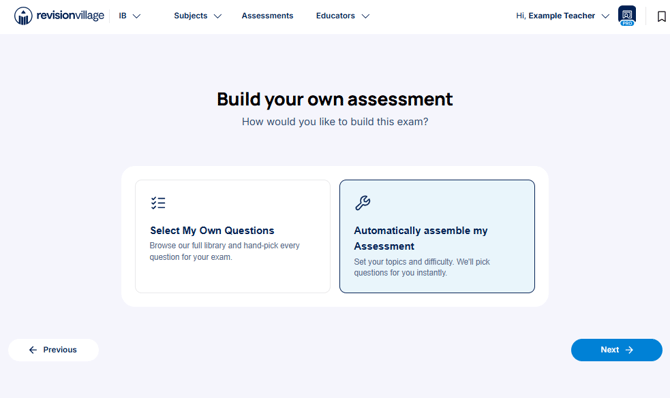
Where to find Automatically assemble my Assessment?
When creating a new assessment, you will be first asked how you would like to select questions for your assessment. Within the option Build Your Own Assessment, you will be able to choose Automatically assemble my Assessment.
Configure Your Exam
Before selecting content for your assessment, configure first the standard assessment settings available throughout the platform.
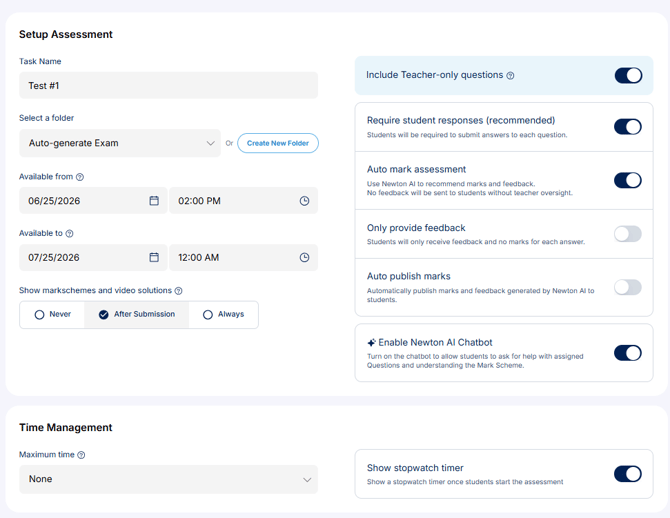
These settings ensure that the generated assessment aligns with your classroom workflow and feedback preferences.
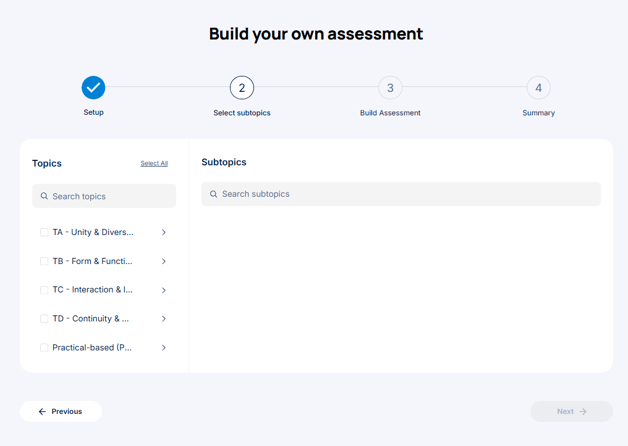
Select Topics and Subtopics
You will then be directed to a familiar topic selection page where you can choose exactly which areas of the syllabus should be assessed.
Define Assessment Parameters
Next, please specify the characteristics of the assessment you would like Revision Village to generate.
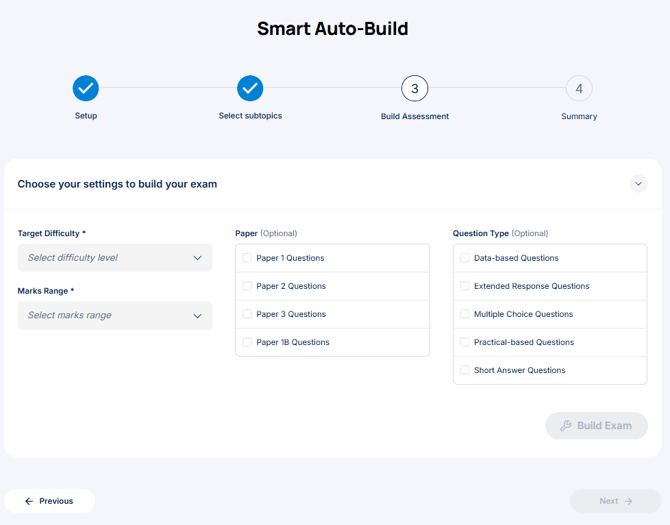
Difficulty Level
Choose the overall difficulty profile for the assessment:
- Easy
- Medium
- Hard
The selected difficulty determines the overall distribution of question difficulty, rather than making every question the same level.
For example, selecting Medium generates an assessment primarily composed of medium-level questions while still including some easier and more challenging questions to create a balanced and realistic assessment experience.
Marks Range
Select the target mark total for the assessment.
This allows you to create anything from a short formative quiz to a full summative examination.
Paper Selection (Optional)
You may optionally restrict the assessment to specific paper styles:
- Paper 1
- Paper 2
- Paper 3 (where applicable)
Leaving this blank allows questions to be selected across all available paper formats.
*Note that choosing Paper 2 Questions will simply select from available Paper 2 Questions, rather than balancing a complete Paper 2. For pre-assembled, well-balanced Papers, please see the Mock Exams within the Practice Exams section.
Question Type (Optional)
You can further refine your assessment by selecting question styles:
- Extended Response Questions
- Short Answer Questions
- Data-based Questions
- Multiple Choice Questions
- Practical-based Questions
- Comprehension Questions
- Source Based Questions
- Listening Comprehension Questions
- Reading Comprehension Questions
Alternatively, you can leave this unselected to generate a mix of question types.
Review and Refine
Once the assessment has been generated, you have complete control over the final version.
You can:
- Rearrange the order of questions
- Remove questions
- Regenerate Exam
- Add additional questions manually or automatically
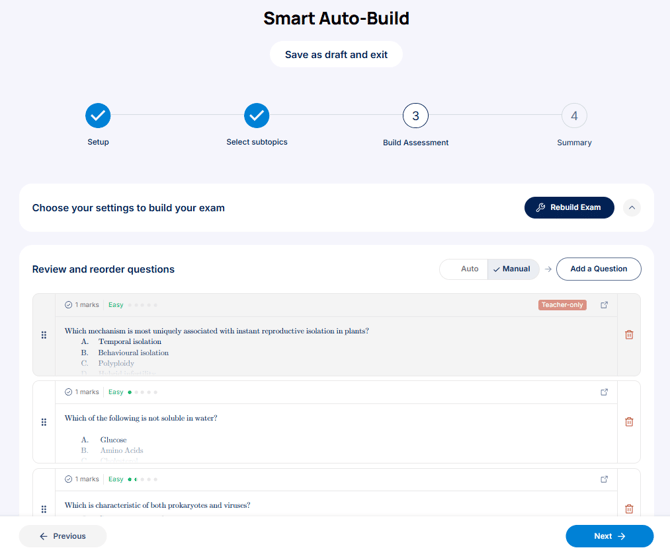
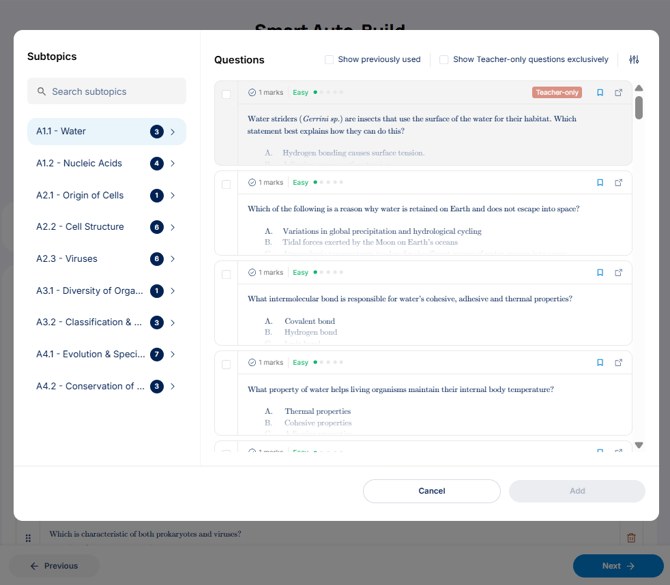
To manually add questions, click on Manual and Add a Question. A pop up window will appear where you can select additional questions by clicking the check box beside each question. You will notice that questions already included in the generated exam are already checked and can no longer be selected. The number of questions included per subtopic are also visible for your reference.
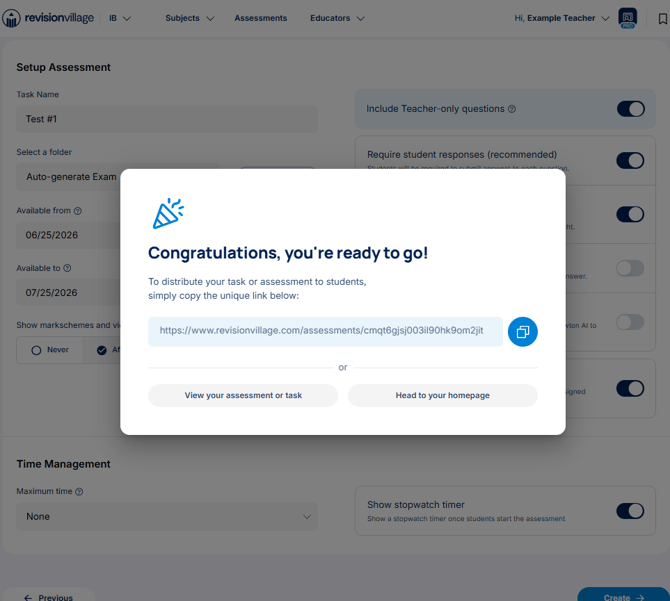
Distribute your Assessment
Once the assessment has been finalized, you can easily distribute it to your students by sharing the assessment link generated by the platform.