To note: Teachers with EducatorPro accounts purchased through our School Partnership program with student RV Gold accounts that have been set up in their respective classes can access the AI settings for their respective classes through the Account Settings menu.
Overview
The AI switches provide a customizable study experience for your students by choosing which AI chatbot and feedback features are enabled:
1. Newton AI Chatbot for Questions and Case Studies
When this setting is on, students will have access to the chatbot as they attempt questions, and will be able to ask for guardrailed AI help with understanding a question, help getting started, or anything else related to the question as they answer it. Guardrails are in place to prevent Newton from simply giving away the answer. Certain activities in which students interact with an AI chatbot within Bootcamps are also disabled.
2. Newton AI Chatbot for Markschemes
When this setting is on, the chatbot will be visible and available on markscheme pages only, so that students can ask specifically for help with understanding a solution or markscheme.
3. AI Feedback for use within the Questionbank, Case Studies, and other features, as well as all Exam Mode Assessments
Students can submit answers to any question on the platform in the form of typed responses, photographs of written work, or recorded audio clips and receive marks and feedback on their answers. This also enables students to take all Practice Exams in Exam Mode and receive detailed AI feedback on their work.
All three switches are on by default. You can turn any of them off for your students and you can turn them back on at any time.
Where to find the class AI settings
- Open the Settings menu on your account
- Go to the AI settings tab
- Select the class you want to manage. You will see the three switches described below.
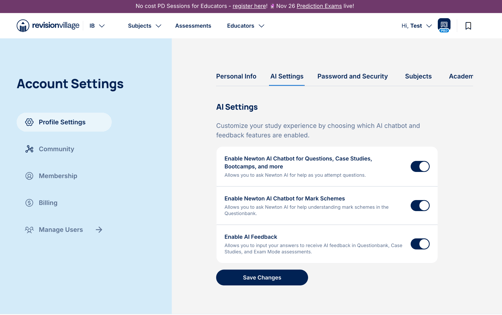
The 3 switches for your class
1. Newton AI Chatbot for questions, case studies and bootcamps
When ON: Students can ask Newton AI for help on these pages
When OFF: The option to ask Newton AI for help on these pages is removed for students in your class.
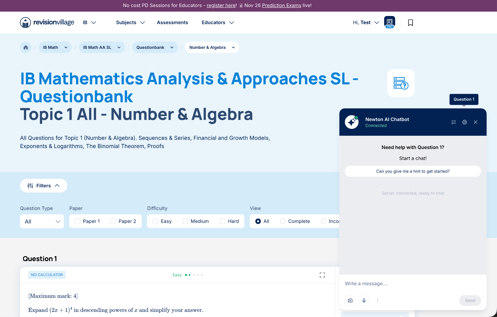
2. Newton AI Chatbot for Markschemes
When ON: Students can ask Newton AI for help understanding a markscheme on the Questionbank pages.
When OFF: The option to ask Newton AI for help in understanding a markscheme on the Questionbank pages is removed for students in your class.
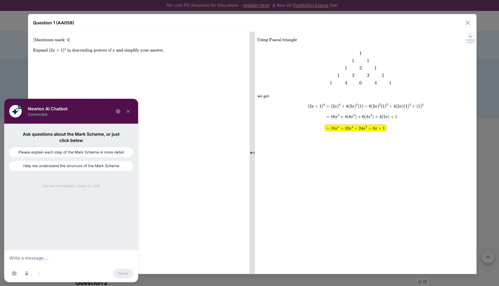
3. AI Feedback & Student Input
When ON: Students can submit answers for AI marks and feedback to all questions, as well as to study using the Practice Exams in Exam Mode.
When OFF: Students cannot submit answers for AI marks and feedback to all questions, nor can they use the Practice Exams in Exam Mode.
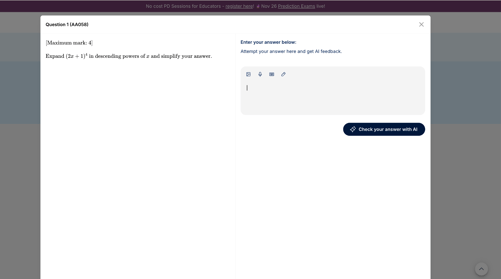
How class settings affect your students
- When you turn a switch off for a class, the feature is automatically locked and set to off for the subject or subject group those students are taking in your class.
- Students cannot re-enable a feature you have locked off for that subject
- However, students can still enable or disable the feature for their other subjects. Your class setting only locks the feature for the subject/subject group linked to your class.
- When you turn a switch back on, students regain the ability to use that feature, subject to their own personal settings.
How class settings affect assessments
- Changing the class AI settings also changes the default for assessments created for that class.
- When you disable AI features for a class, the chatbot is removed from assessments by default for that class, but can be enabled for a specific assessment.
FAQs
1. Are the AI features on or off by default?All three switches are on by default for your class.
2. Can a student turn a feature back on after I turn it off for the class?No. If you lock a feature off for a class, students cannot enable that feature for the subject or subject group linked to that class. They can still use the feature for their other subjects.
3. Does turning a feature off for one class affect the student's other classes or subjects?No. The lock applies only to the subject or subject group linked to that class. Students can still enable AI features for their other subjects.
4. Do my class settings change assessment defaults?Yes. When you disable AI features for a class, the defaults for assessments created for that class are updated to remove the chatbot.
5. Can I turn a feature back on later?Yes. You can adjust any of the three switches at any time in the AI settings tab.
6. Who can access these switches?Teachers with EducatorPro accounts purchased through our School Partnership program with student accounts that have been set up in their respective classes can access the AI settings for their classes through the Settings menu.